Some time ago I retired my old Dell XPS laptop for a 2011 MacBook Pro 13" with a solid state drive. I don't have much time for gaming these days, but from time to time I would like to cast some holy paladin heals in the Warsong Gulch battleground in World of Warcraft.
I was worried that WOW would be to tough for the Intel HD Graphics 3000 card, but to my surprise it ran in 60 fps when running around in Goldshire:
There was a problem though, when running up to Stormwind to search for some new gear and enchants at the auction house there was a major increase in the fan speed. The auction house area is quite crowded on the Silvermoon server. The previously silent Mac was not so silent anymore :(
After some searches I found the follow work-around: The console in WOW allows you to limit the frame rate of the game with the maxfps console command. I created two macros, one that sets the frame rate to 5 which I use when I'm in the crowded Stormwind area, and another macro which limits the frame rate to 30 which I use inside the battlegrounds. Here's a screenshot of how I set up the 5 fps macro:
With these two macros I can play the battlegrounds with a reasonable frame rate and visit the city centers without having the Mac noticeable increasing its fan speed.
Did this solve the loud fan problem when you play World of Warcraft on your Mac?
Saturday, 26 May 2012
Thursday, 26 April 2012
Loading seems to be taking a while
I've been getting the "Loading seems to be taking a while" error message when clicking on the @Connect tab on Twitter for about a month now. Pretty annoying. Anyone found a solutions for this?
Wednesday, 5 October 2011
Windows 8, VMWare, HAL_INITIALIZATION_FAILED, VirtualBox and broken network bridging
A couple of days ago I downloaded Windows 8 to port my C++ code to this new platform. I tried to install
Windows 8 into my good old VMWare Workstation 5.5.9 where I run my other virtual machines, but ended up getting a HAL_INITIALIZATION_FAILED error message when booting from the .iso:
But since word was on the street that VirtualBox 4.1.2 could handle Windows 8 I gave that a try.
Unfortunately the Windows installer kept hanging while "Expanding Windows Files" while installing it onto
the VirtualBox virtual machine.
After some trial and error I changed the number of processors/cores in the VirtualBox virtual machine settings to the same number of processors/cores as on the host system, in my case two. This change seemed to do the trick and the installation completed without any other issues.
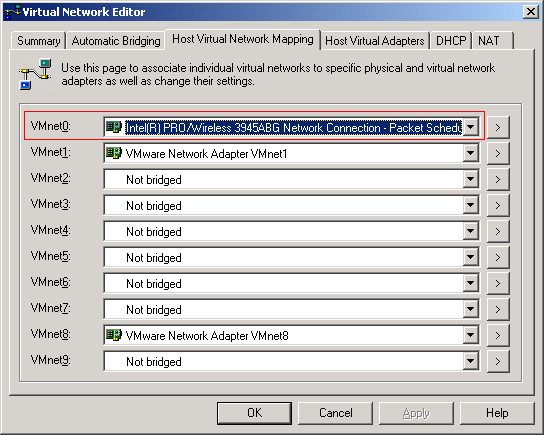
When I went back to run my VMWare virtual machines I noticed that their brigded networking was no longer working :( Switching to NAT and it worked fine, back to bridged and no network connection. For some reason the installation of VirtualBox caused my existing bridged connection to fail. Anyway, the solution was to explicitly set the network adapter VMWare should bridge with, in my case the Wireless adapter:
Hope this helped someone. Now I'm going to try the 64-bit version of Windows 8.
Sunday, 18 September 2011
How to find the process that is using a TCP port
Earlier today I was inspecting all computers in my home for malware with the help of GMER and FreeFixer. I was also using the netstat command line tool to look for any suspicious network connections. Netstat shows established TCP connections and ports that are listening for incoming connections. There was one entry in the netstats output that looked a bit suspicious: A connection to a server at cust.tele2.se on port 5938 and cust.bredbandsbolaget.se, also on port 5938.

The problem with netstat is that I couldn't see the name of the executable file that had established this connection. As usual Sysinternals comes to the rescue. They offer a tool called TCPView which also shows the process name along with connection info. It turned out that TeamViewer that I recently installed had established the cust.tele2.se:5938 connection:

Another alternative to find the process name that owns a connection is to use netstat -o which will list the process identifier for each connection and compare it to the information listed in the Windows Task Manager.
The problem with netstat is that I couldn't see the name of the executable file that had established this connection. As usual Sysinternals comes to the rescue. They offer a tool called TCPView which also shows the process name along with connection info. It turned out that TeamViewer that I recently installed had established the cust.tele2.se:5938 connection:
Another alternative to find the process name that owns a connection is to use netstat -o which will list the process identifier for each connection and compare it to the information listed in the Windows Task Manager.
Sunday, 12 September 2010
BUGCODE_USB_DRIVER
Friday, 30 April 2010
Desktop Security 2010 Scareware
Wednesday, 7 April 2010
Your Protection Scareware
Stumbled upon a new scareware application called "Your Protection" today:

FreeFixer v0.55 log
http://www.freefixer.com/
Operating system: Windows XP Service Pack 2
Log dated 2010-04-07 14:20
Registry Startups (5 whitelisted)
HKCU\..\Run, Your Protection = "C:\Program Files\Your Protection\urpprot.exe" -noscan
Subscribe to:
Posts (Atom)